Junction
I built this file manager because going up to the parent folder in Finder was frustrating. You move around with the folder tree on the left, search files on this Mac, iCloud, OneDrive, and Google Drive all at once, and see recently changed files at a glance.
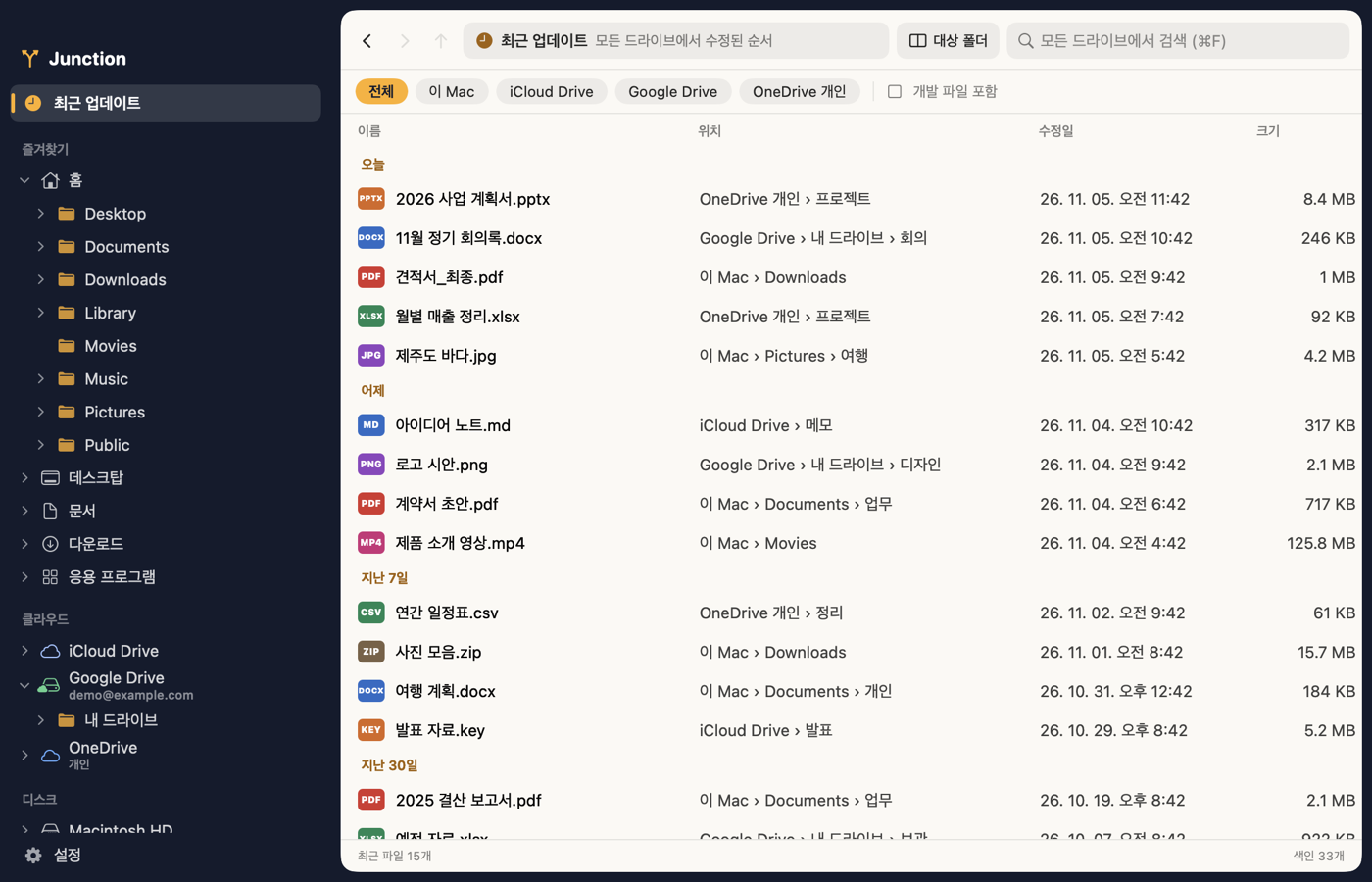
Key features
- Quick folder navigation: Move around with the folder tree on the left, and go up to the parent folder with ⌘↑ or ⌫. When you go up, the folder you just left is selected.
- Recent updates: Shows the 300 most recently modified files across all drives, grouped by date. Files inside app libraries and development projects are left out by default.
- Unified search: Searches the names of files and folders on this Mac and your cloud drives all at once. It doesn’t search file contents.
- Copy and move with two panes: Open the right pane with ⌘\, then drag and drop, or press F5 (copy) or F6 (move).
- Safe file operations: If something with the same name already exists, Junction changes the name instead of overwriting it. Deleted items go to the Trash, and you can undo with ⌘Z.
- Automatic updates: When a new version comes out, Junction asks first, then downloads, verifies, and installs it.
Installation
Requires macOS 14 or later. The interface is available in Korean, English, Japanese, Simplified Chinese, and Spanish, and you can change it in Settings. Open the DMG and move Junction to your Applications folder.
Connecting cloud drives
You don’t sign in to Junction separately. It reads the folders that each service’s desktop app creates.
| Service | Setup |
|---|---|
| OneDrive, Dropbox, Box | Install the service’s app and sign in, and it appears automatically. |
| Google Drive | Install the Google Drive desktop app and sign in. |
| iCloud Drive | Turn on iCloud Drive in System Settings. |
Listing and indexing read only metadata, so online-only files aren’t downloaded. A file is downloaded when you open it, preview it, or copy it off the drive.
Common shortcuts
| Key | Action |
|---|---|
| ⌘↑ or ⌫ | Go to the parent folder |
| ⌘↓ or Return | Open the selected item |
| ⌘[ / ⌘] | Back / Forward |
| ⇧⌘F | Recent updates |
| ⌘F | Search all drives |
| ⌘L | Type a path |
| F2 or ⌘R | Rename |
| ⌘⌫ | Move to Trash |
| ⌘Z | Undo the last file operation |
Junction doesn’t send file contents anywhere, and the search index is stored only on your Mac. You can read more in the privacy policy.
Update history
v0.2.0
Five languages
- The app is now available in Korean, English, Japanese, Simplified Chinese, and Spanish. It starts in your system's language.
- Changing the language in Settings applies right away. Permission prompts and the update window change the next time you open the app.
- Settings now has a link to the website.
- The path bar keeps the current folder visible when the width changes.
v0.1.1
Open cloud drives directly from the right pane
- The location button in the right pane opens cloud drives, favorites, and disks directly.
- Right-click a folder in the folder tree on the left to open it in the right pane.
- Google Drive opens directly at My Drive, where you can add files.
- In folders that can't accept files, copying and moving are blocked, and the app tells you why.
v0.1.0
First public release
- Browse and search local files, iCloud Drive, OneDrive, and Google Drive in one window.
- Includes a folder tree, a recent updates list, and a second pane for copying and moving.
- Downloads, verifies, and installs new versions from inside the app.
- Distributed as a DMG notarized by Apple.
If something is wrong or you have a question, see the Support page.